
Printer Offline? How to Get It Back Online
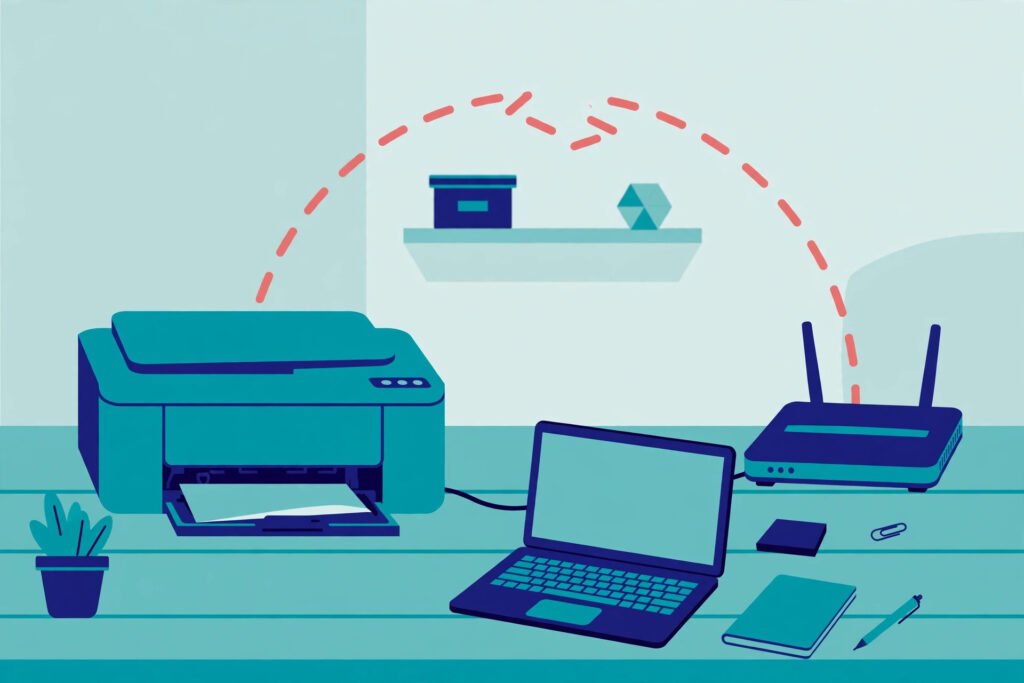
“Printer Offline” is one of the most frustrating messages in printing, because the printer is usually sitting right there, switched on. Offline simply means your computer cannot reach the printer right now — or Windows has decided it cannot. The good news: this is almost always a settings or connection issue, not a broken printer. Work through these fixes in order.
What “Offline” actually means
Your computer talks to the printer over USB or your Wi-Fi network. If that conversation fails — the printer changed its network address, the router restarted, or Windows ticked the “Use Printer Offline” option by itself — the computer marks the printer Offline and holds your documents in the queue instead of printing them.
Fix 1: Untick “Use Printer Offline” (Windows)
This single setting causes a large share of offline problems:
- Settings → Bluetooth & devices → Printers & scanners → click your printer → Open print queue.
- In the queue window, open the Printer menu.
- If Use Printer Offline is ticked, click it to untick it. Also untick Pause Printing if it is on.
The status should change to Ready, and queued documents may start printing immediately.
Fix 2: Restart in the right order
Turn the printer off. Restart your router and wait until it is fully online (about two minutes). Restart your computer. Then turn the printer on and give it a minute to reconnect before printing. Order matters: the printer must join a network that is already up, and the computer should look for it after everything is stable.
Fix 3: Reconnect the printer to Wi-Fi
Printers silently drop off networks after router changes, password changes, or power cuts. On the printer’s control panel, run the wireless setup again (usually Settings → Network → Wireless Setup Wizard), choose your home network, and enter the password. Confirm the Wi-Fi light is solid. Also make sure your computer is on the same network — not a guest network or a VPN.
Fix 4: Set the printer as default and remove copies
Windows often keeps several entries for one printer, and some of them point to an old network address. In Printers & scanners, remove duplicate or greyed-out copies of your printer, keep one entry, and set it as default. Turn off “Let Windows manage my default printer” so it stays put.
Fix 5: Restart the Print Spooler
Press Windows + R, type services.msc, find Print Spooler, right-click → Restart. A crashed spooler can leave a printer showing offline even when the connection is fine. While you are there, confirm its Startup type is set to Automatic.
Fix 6: Remove and re-add the printer
Removing the printer and adding it again forces Windows to find its current network address — this fixes offline problems caused by the printer’s IP address changing. Remove it in Printers & scanners, click Add device, and select it when it appears. On a Mac: System Settings → Printers & Scanners → remove with the minus button, then re-add.
Fix 7: Check the port (advanced, Windows)
If the printer keeps going offline after every restart, its port may be the problem. In Printer Properties → Ports, printers added with a “WSD” port are known for dropping offline. If your printer came with the maker’s own software or a Standard TCP/IP port option during setup, reinstalling with the official driver package usually gives a more stable connection. Brand-specific steps for the most common case: HP Printer Offline? 8 Fixes.
Why your printer keeps going offline — and how to stop it
If your printer works today and shows Offline again tomorrow, you do not have a new fault each time — you have one cause that keeps coming back. Fix 7 above covers the port Windows uses; the three settings below are what usually make the problem return, and fixing them once is what stops the cycle.
1. Your printer’s network address keeps changing
Most home routers hand out addresses automatically (this is called DHCP), and a printer can receive a different address after a restart or a power cut. Windows keeps looking at the old address and reports the printer as offline. The lasting fix is to reserve the address: in your router’s settings, find the DHCP reservation (or “static lease”) option, choose your printer, and save its current address as reserved. The exact menu name varies by router brand, but it is a one-time, five-minute job — and afterwards the printer always lives at the same address.
2. The port is checking the printer the wrong way
On Windows, open Printer Properties → Ports → Configure Port for your printer’s TCP/IP port and untick SNMP Status Enabled. With that option on, Windows decides “offline” based on a status check that many home printers answer unreliably, so the printer gets marked offline while it is actually ready. Unticking it is a well-known cure for printers that drop offline at random.
3. The printer’s own sleep settings drop its Wi-Fi
Many printers have an aggressive sleep or auto-off timer that powers down the wireless radio, and some do not wake cleanly when a job arrives. In the printer’s settings menu (look under Power, Energy Saving, or Network), set sleep to the longest option or turn auto-off off entirely if the printer sits near your computer anyway. While you are in network settings, also check the printer is on your main Wi-Fi band — a weak signal at the edge of the 5 GHz range is another common reason a printer “disappears” and comes back.
Do these three once — reserve the address, untick the SNMP status check, and tame the sleep timer — and a printer that kept going offline usually stays online for good.
On a Mac: reset the printing system
If a Mac keeps showing the printer offline after re-adding it, right-click (or Control-click) the printer list in System Settings → Printers & Scanners and choose Reset printing system. This removes all printers and queues; add your printer again afterwards. Note this also removes any other printers you had set up.
Still offline? Work out which side is failing
Open the printer’s own screen: if it shows your Wi-Fi network name as connected, the printer is on the network and the fault is in the computer (repeat Fixes 1, 5, and 6). If the printer itself shows no network connection, the fault is between printer and router (repeat Fixes 2 and 3, and move the printer closer to the router if the signal is weak). And if the printer will not print at all — even its own test page — you may have a wider fault: see Printer Not Printing? How to Fix It.
Quick recap
Untick Use Printer Offline → restart router, computer, then printer → reconnect the printer’s Wi-Fi → delete duplicate entries and set the default → restart the Print Spooler → remove and re-add the printer. Following that order brings most “offline” printers back within ten minutes.


Pingback: HP Printer Offline? 8 Fixes to Bring It Back Online – TechyTools
Pingback: Printer Not Printing? How to Fix It Step by Step – TechyTools
Pingback: Epson Printer Not Printing? 9 Fixes That Solve It – TechyTools
Pingback: Printer in Error State? How to Clear It – TechyTools
Pingback: Brother Printer Not Printing? 9 Fixes to Try - TechyTools
Pingback: Canon Printer Not Printing? 9 Fixes That Solve It - TechyTools