Brother Printer Not Printing? 9 Fixes to Try
Brother printers are workhorses, but when one stops printing it usually comes down to a small set of causes: a stuck queue, a dropped Wi-Fi connection, a driver problem, or — on laser models — a toner or drum message being ignored. Here are the fixes for Brother inkjet and laser printers, in the order worth trying them.
1. Read the printer’s screen first
Brother machines are good at saying what is wrong. Check the LCD or status lights for messages about toner, drum, ink, paper jam, or a cover being open. A laser Brother showing “Replace Toner” or a drum warning may refuse to print even though pages looked fine yesterday. Deal with the message on the screen before changing anything on the computer.
2. Check paper, ink, and toner properly
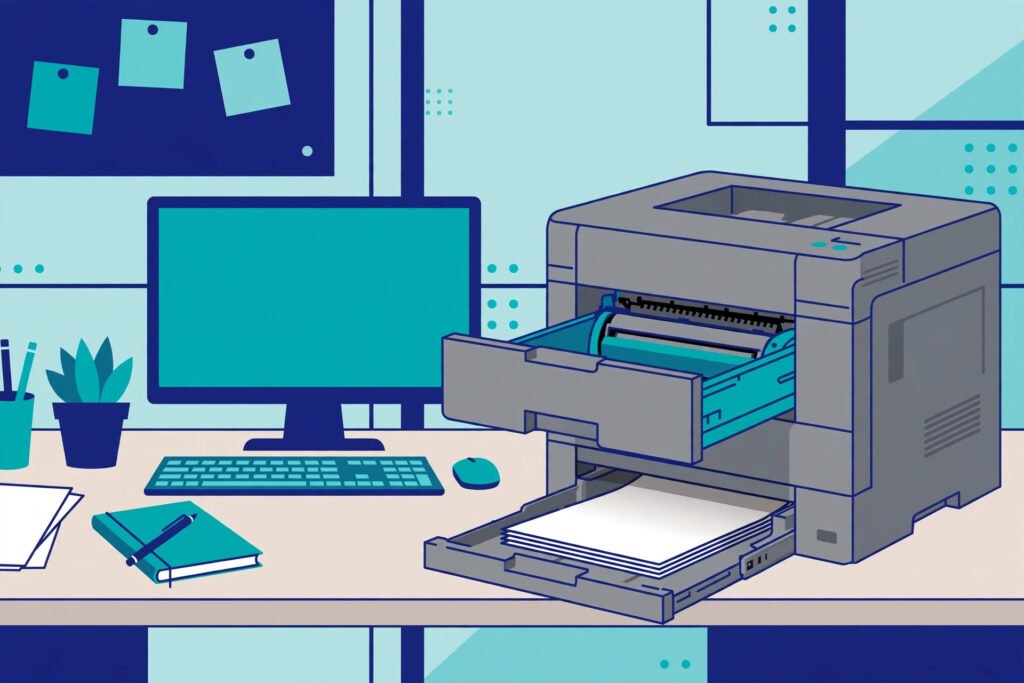
Load paper correctly in the tray and fan it first to prevent multi-feeds. For inkjet models, check ink levels on the screen — an empty colour can block printing on many models. For laser models, remove the toner cartridge and rock it gently side to side to redistribute the toner, then reseat it firmly; this often clears a false “toner low/empty” stop.
3. Clear the print queue
One failed job blocks everything behind it. On Windows: Settings → Bluetooth & devices → Printers & scanners → your Brother → Open print queue → cancel all documents. On a Mac, open the printer from System Settings → Printers & Scanners and delete waiting jobs. If a job will not delete on Windows, restart the Print Spooler (services.msc → Print Spooler → Restart). The general method is explained in our main guide: Printer Not Printing? How to Fix It.
4. Set the Brother as the default printer
Check you are not sending jobs to an old printer entry or a duplicate “Brother (Copy 1)”. Set the correct Brother as default (Windows: Printers & scanners → your printer → Set as default, with “Let Windows manage my default printer” turned off. Mac: System Settings → Printers & Scanners → Default printer).
5. Power-cycle the printer the full way
Turn the Brother off, unplug it from power for 60 seconds, then plug it back in and switch it on. Wait until it reaches its ready state — Brother machines run a short self-check — before sending a test page. This clears a surprising number of frozen states, especially after a power cut or a jam.
6. Reconnect the Wi-Fi (wireless models)
If the printer shows offline or jobs vanish, reconnect it: on the printer panel, Menu → Network → WLAN → Setup Wizard, choose your network, and enter the password. Confirm the machine reports “Connected”. If it will not stay connected, see our Printer Offline guide — the restart order and duplicate-entry fixes there apply to Brother models too.
7. Reinstall the Brother driver (full driver package)
Download the “Full Driver & Software Package” for your exact model from Brother’s official support site. Uninstall the old Brother software first, restart the computer, run the new package, and connect the printer when the installer asks. Avoid generic driver sites — outdated or bundled drivers are a common cause of repeat problems.
8. Update the firmware
Brother releases firmware that fixes Wi-Fi stability and compatibility with newer operating systems. Update via Brother’s Firmware Update Tool from the official support page for your model, or from the printer’s network settings on supported models. Keep the printer powered on and connected throughout the update.
9. Print a test page from the machine itself
Use the panel to print a settings or test page (often under Menu → Print Reports). If the machine cannot print its own page, the fault is inside the printer — toner/drum, ink system, or hardware. If it prints, the printer is healthy and the problem is the computer or connection: repeat steps 3, 4, and 7.
The short version
Read the screen message → check paper/ink/toner (reseat the toner on lasers) → clear the queue → set as default → full power-cycle → reconnect Wi-Fi → reinstall the official full driver package → update firmware → test from the machine. That order fixes most Brother printing failures without a service visit.